DNS, DKIM and certificates
Every domain needs three things kept right: its DNS records, its DKIM keys, and a TLS certificate for the names clients connect to. Each one can be done by hand or left to the server, separately, per domain.
| By hand | Left to the server | |
|---|---|---|
| DNS records | You add them at your DNS host, from a list the server gives you | The server writes them through your DNS host's API, and rewrites them when anything changes |
| DKIM keys | You create and publish keys | The server creates them, and with automatic DNS also publishes, rotates and retires them. This is the default |
| Certificates | You upload them | The server gets and renews them from an ACME provider such as Let's Encrypt |
All three are set in the console. The webmail's Administration shows the records and keys, and which way each domain is set, but changing it is the console's job. See the webmail's side below.
DNS records
A new domain's DNS Management is Manual DNS management: the server tells you what to publish, and you publish it.
By hand
The records to publish are listed in the webmail's Administration › Domains, each with a copy button, and Copy all as a zone file for hosts that can import one.
The console lists them too, and checks them as you go. On the domain's page, choose Set it up, then Guide me. When your DNS host is one the server can't update, or you choose Add the records by hand instead, the guide becomes a list of the records to add. Each one ticks green once the internet can see it.
The console checks by asking Cloudflare's public DNS-over-HTTPS resolver, so a green tick means the record is visible from outside, not only from your own network. The page says which resolver it asks.
Left to the server
The server can write the records itself, through the API of your DNS host. It supports 68 hosts, plus RFC 2136 dynamic updates for a DNS server you run yourself. Among them are Cloudflare, AWS Route 53, Google Cloud DNS, Azure DNS, DigitalOcean, Hetzner, OVH, Gandi, Porkbun, Namecheap, GoDaddy, IONOS, Linode, Vultr, deSEC, and cPanel and Plesk servers.
On the domain's page, the card Let the server publish your DNS records has Set it up, which offers Guide me or I'll do it myself.
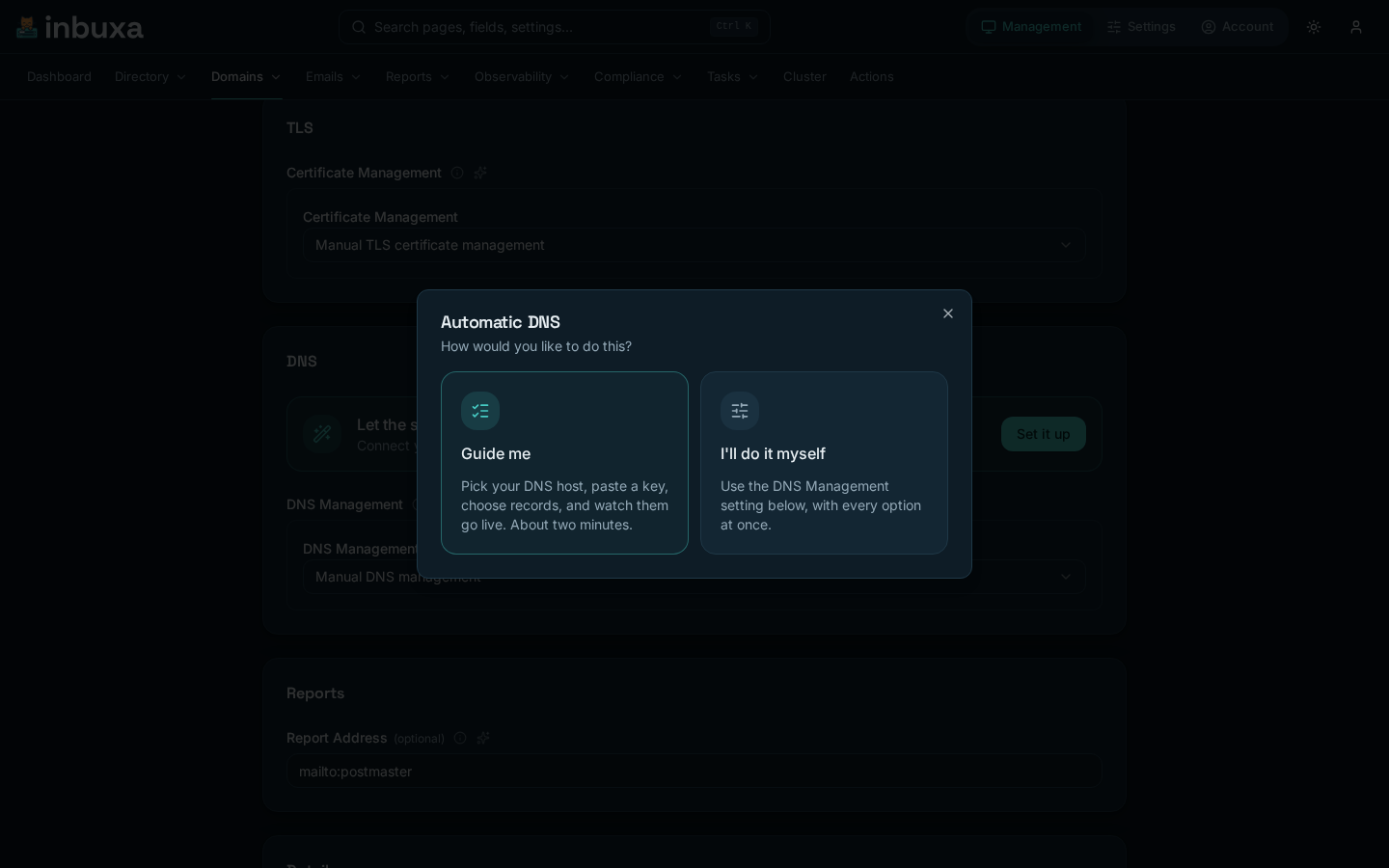
Guide me opens Publish DNS for your domain, in five steps:
- Your DNS host. The console looks up where the domain's DNS is hosted and names the host it found. If that's wrong, choose your host from the list. If it's a host the server can't update, you are offered the records to add by hand instead.
- Connect. Paste an API key for that host, or reuse a connection you already have. Give the server a key that can edit DNS for this domain and nothing else: if it ever leaked, that's all it could touch. The key is stored in the server's settings and never shown again.
- Records. Choose which records to publish. Only the names listed are written. Records the server doesn't own, such as your website's, are left as they are.
- Review. What will happen, before anything changes.
- Go live. The connection is saved, the domain switches to automatic DNS, and the server starts writing. Most hosts show the records within a minute or two, and each one ticks green as it goes live.
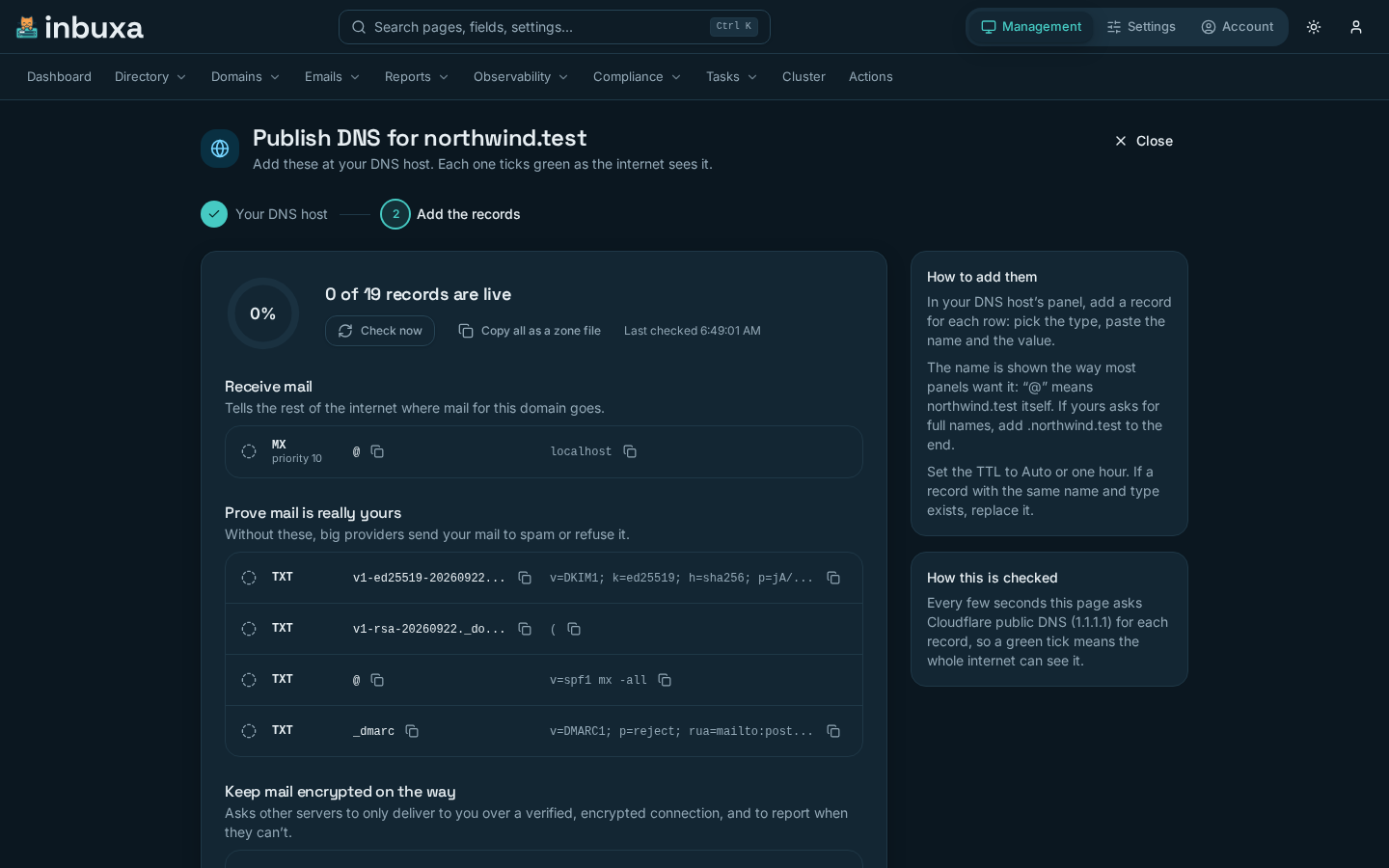
If a step fails, nothing is kept. If your DNS host turns the update down, the page says so and shows what the host said.
I'll do it myself goes straight to the domain's DNS Management setting. Set it to Automatic DNS management, with:
| Field | What it is |
|---|---|
| DNS Server | The connection to your DNS host, from Settings › Network › DNS providers |
| Zone Origin | Only when the domain sits inside a bigger zone at your host, such as mail.example.com kept in example.com |
| Record Types | Which records to publish |
Record Types starts with everything except TLSA:
| Record | On by default |
|---|---|
| DKIM public keys, SPF records, MX records, DMARC policy | yes |
| SRV records, Autoconfig records, Legacy Autoconfig records, Microsoft Autodiscover records | yes |
| MTA-STS policy record, TLS reporting record, CAA records | yes |
| TLSA records | no |
TLSA (DANE) records pin a certificate. Publish them only when you understand what happens to them when the certificate is renewed.
From then on, the server rewrites the records whenever something they depend on changes, such as a DKIM key rotating.
Stopping it
Set DNS Management back to Manual DNS management. Updates stop, and the records already written stay where they are.
DKIM keys
DKIM keys sign outgoing mail so receiving servers can check it came from you. A new domain's DKIM Management is Automatic DKIM management, with these defaults:
| Field | Default |
|---|---|
| Signing Algorithms | DKIM1 (Ed25519 SHA-256) and DKIM1 (RSA SHA-256): a key of each kind |
| Selector Template | v{version}-{algorithm}-{date-%Y%m%d} |
| Rotate After | 90 days |
| Retire After | 7 days |
| Delete After | 30 days |
Every setting after the algorithms depends on automatic DNS, because each step changes what is published:
- Rotate After: how often a new key replaces the current one. The server creates it and publishes its record.
- Retire After: how long the old key's record stays published after rotation, so mail it already signed can still be checked. Then the record is removed.
- Delete After: how long the old key is kept on the server after rotation, before it's deleted for good.
With manual DNS, the domain's keys don't rotate. They keep signing until you replace them.
The keys are listed under Management › Domains › DKIM Signatures.
Manual DKIM management stops the rotation. You then create keys, and remove them, yourself.
Certificates
A new domain's Certificate Management is Manual TLS certificate management. For the server to get certificates itself, set it to ACME TLS certificate management, with:
| Field | What it is |
|---|---|
| ACME Provider | Which provider to use, from Settings › Security › Automatic certificates (ACME) |
| Additional Hostnames | Other names the certificate should cover |
The certificates guide
Certificates, automatically, on Settings › Overview, sets this up for you in about two minutes:
- Domains. Pick them. Each shows whether it's managed by hand, and until when its current certificate is valid.
- Check names. Nothing is ordered yet. A domain whose DNS is
connected is checked through DNS: its certificate covers
the domain and everything under it (
*.domain), and nothing needs to reach this server. Any other domain's names are looked up in public DNS and compared with where this server points, and each problem is named: a name that doesn't exist (add a CNAME to this server), one that goes through the Cloudflare proxy (set it to DNS only), or one that points somewhere else. Fix those and check again, connect the domain's DNS, or order anyway, and it keeps retrying until the names are fixed. One certificate covers all of a domain's names, so a single failing name holds up the whole order. - Account. An email address for Let's Encrypt, which writes only about problems with your account or certificates. Creating the account accepts their Subscriber Agreement. A Let's Encrypt account already set up on the server is reused. Staging issues certificates browsers don't trust, with far looser limits: use it to see everything work, then run the guide again without it.
- Review. Which domains switch, how each is checked, and which are left as they are until their names are fixed.
- Watch them arrive. The guide checks every few seconds; most certificates arrive within a minute.
The server renews each certificate well before it expires. A failed renewal shows under Management › Tasks › Failed. To undo, set a domain's Certificate Management back to manual; certificates already issued stay until they expire.
ACME providers
Under Settings › Security › Automatic certificates (ACME). A new provider starts with Let's Encrypt's directory. The fields that matter most:
| Field | Default | What it is |
|---|---|---|
| Directory URL | Let's Encrypt | The provider's ACME directory |
| Challenge type | TLS-ALPN-01 | How you prove you own the name. DNS-01 works with automatic DNS, and is the one to use when port 443 doesn't reach the server |
| Contact Email | none | Where the provider sends expiry warnings |
| Renew before | 2/3 of the remaining time until expiration | When renewal starts |
| Key ID, HMAC Key | none | External account binding, for providers that need it |
TLS-ALPN-01 is answered on port 443, so the server has to receive that port's TLS itself, not a proxy in front of it that ends TLS. HTTP-01 is answered on port 80.
A provider can belong to a tenant, in its Tenant field. That tenant's administrators then see and use it, and nobody else's domains can.
Certificates, whether from ACME or uploaded, are listed under Settings › Security › Certificates.
What the webmail shows
The webmail's Administration › Domains is for the people who look after domains day to day. For each domain it shows:
- whether its DNS records, DKIM keys and certificate are Automatic or By hand;
- its DNS records, each with a copy button, and Copy all as a zone file;
- its DKIM keys, and where each one is in its life.
It doesn't change any of those settings. Moving a domain between automatic and manual, connecting a DNS host, and choosing an ACME provider are done in the console.
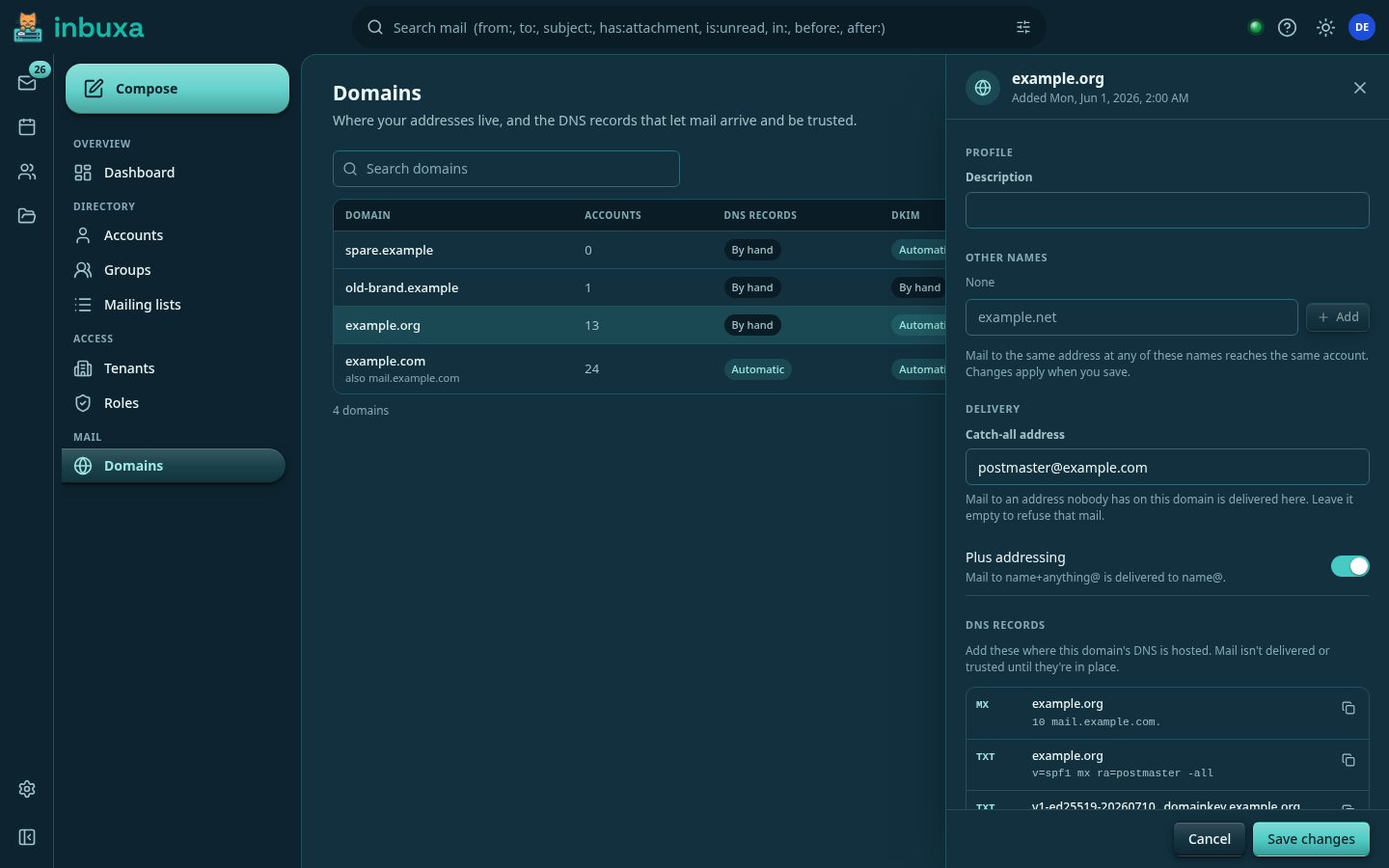
See Administration › Domains for the webmail's side in full.
DNS lookups the server makes
Settings › Network › DNS resolver sets how the server itself looks names up, for delivering mail and checking senders: System Resolver, a Custom DNS server, or Cloudflare DNS, Quad9 DNS or Google DNS. This is separate from publishing records.