The console and the webmail
inbuxa has two places to administer from:
- The webmail's Administration is for everyday work on people: adding accounts, resetting passwords, groups, mailing lists, tenants and roles, and copying a domain's DNS records. It's inside the webmail, so the people who do that work don't need another program.
- The console, inbuxa Admin, is for the server itself: everything above, and everything else. It is a separate program, which you can keep on an internal network; see Where each service goes.
Both work through the same server, which checks every change against the role of whoever makes it. Neither can do more than the role allows.
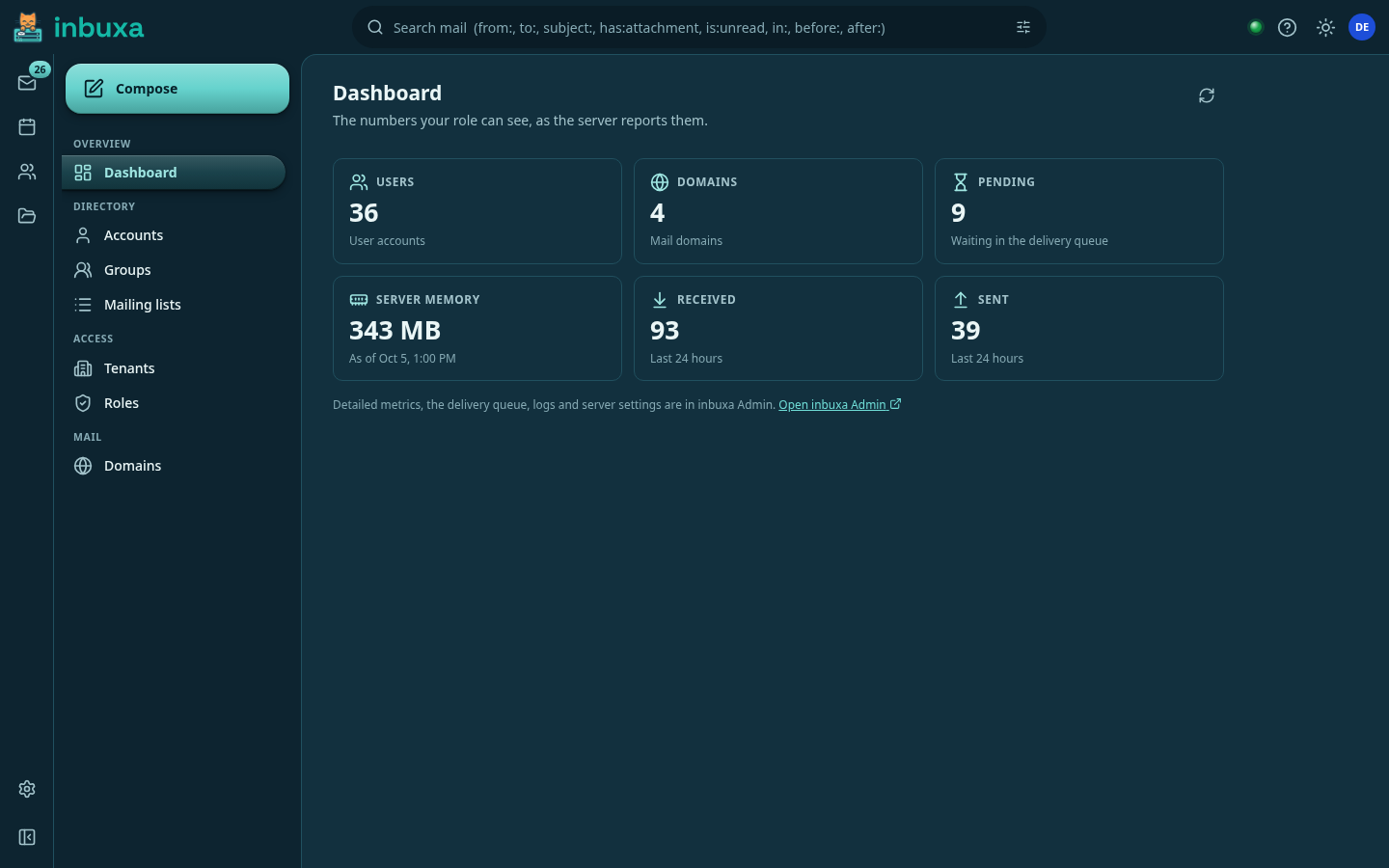
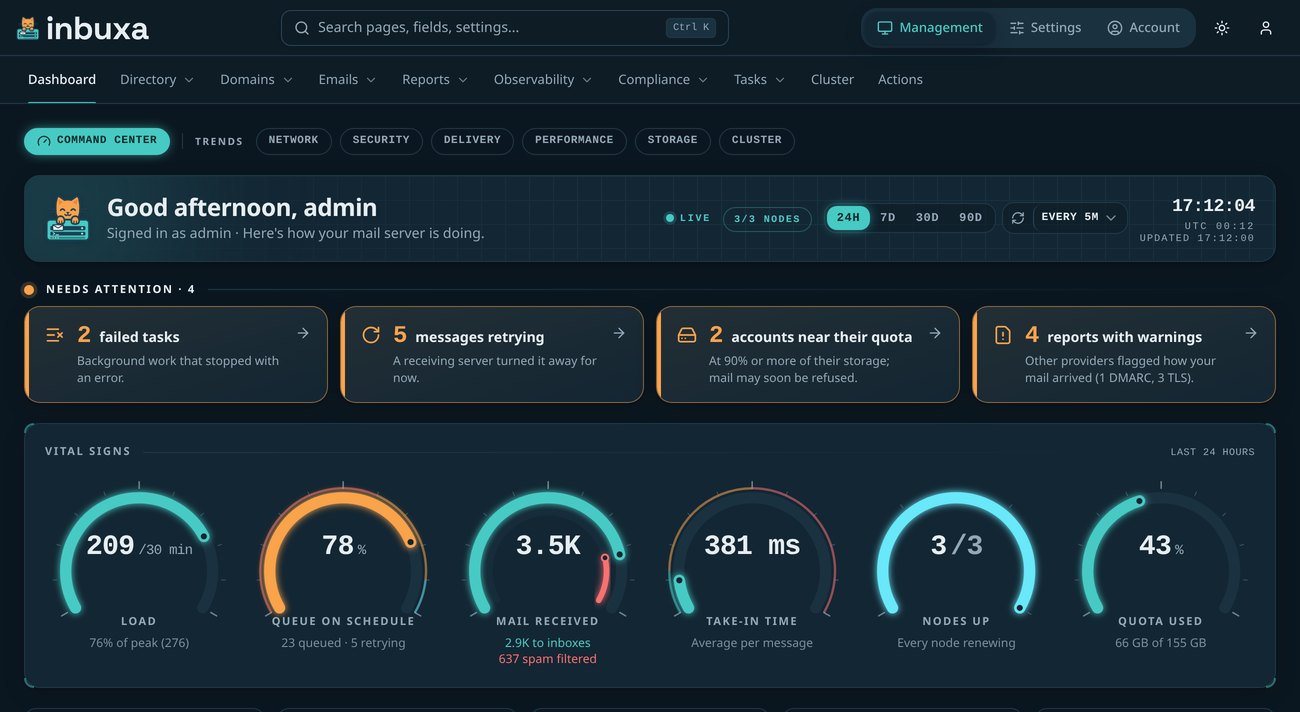
Which one to open
| Job | Webmail › Administration | Console |
|---|---|---|
| Accounts: add, reset a password, remove | Accounts | Management › Directory › Accounts |
| Groups and mailing lists | Groups, Mailing lists | Management › Directory › Groups, Mailing Lists |
| Tenants and their limits | Tenants | Management › Directory › Tenants |
| Roles | Roles | Management › Directory › Roles |
| A tenant's legacy mail apps | Tenants › Legacy mail apps | The tenant's page |
| A domain's DNS records and DKIM keys | Shown, to copy | Shown, and managed: DNS, DKIM and certificates |
| Automatic DNS, DKIM rotation, certificates | Shown, not changed | DNS, DKIM and certificates |
| Where people sign in: LDAP, SQL, OpenID Connect, SCIM | Directories and SCIM | |
| Local AI | Local AI | |
| Clusters | Clustering | |
| Dashboards, delivery history, logs, alerts | A six-card dashboard | Monitoring |
| Undelete | Backups and undelete | |
| Who changed what: the audit log | Audit log | |
| Keep everything for a case: legal holds | Legal holds | |
| Lock an account and hand it to someone | Locked accounts | |
| Legacy protocols for the whole server | Protocols | |
| OAuth clients | Management › Directory › OAuth Clients | |
| Spam filter rules, queue, listeners, storage, TLS, and every other setting | Settings |
The webmail's side is described in full on Administration, including who sees it and why it can be grayed out.
The webmail's Administration
It is in the webmail's account menu, top right, for anyone whose role lets them look after part of the server. Two things can switch it off:
- The device. It works only in a session signed in with This is my own device ticked. A borrowed or shared machine is exactly where a session shouldn't be able to reset a password or remove a domain.
- The operator. The webmail service's
ADMINISTRATIONsetting turns it off for everyone. It is on unless set to0.
Switched off means off, not hidden: the webmail's server refuses the administrative requests themselves, so they can't be made from the browser's developer tools either. A person's own settings, mail, calendars and contacts are unaffected.
The console
The console's top bar has three sections:
- Management: the running server. The dashboard, accounts and domains, the mail queue and delivery history, reports, tasks, the cluster, logs and tracing.
- Settings: how the server is configured, grouped by job along its own bar: Mail flow, Spam filter, Security, Network, Mail & apps, Storage, Monitoring and System, after an Overview.
- Account: your own account. Password, app passwords, API keys, masked addresses, archived items, Sieve scripts and more.
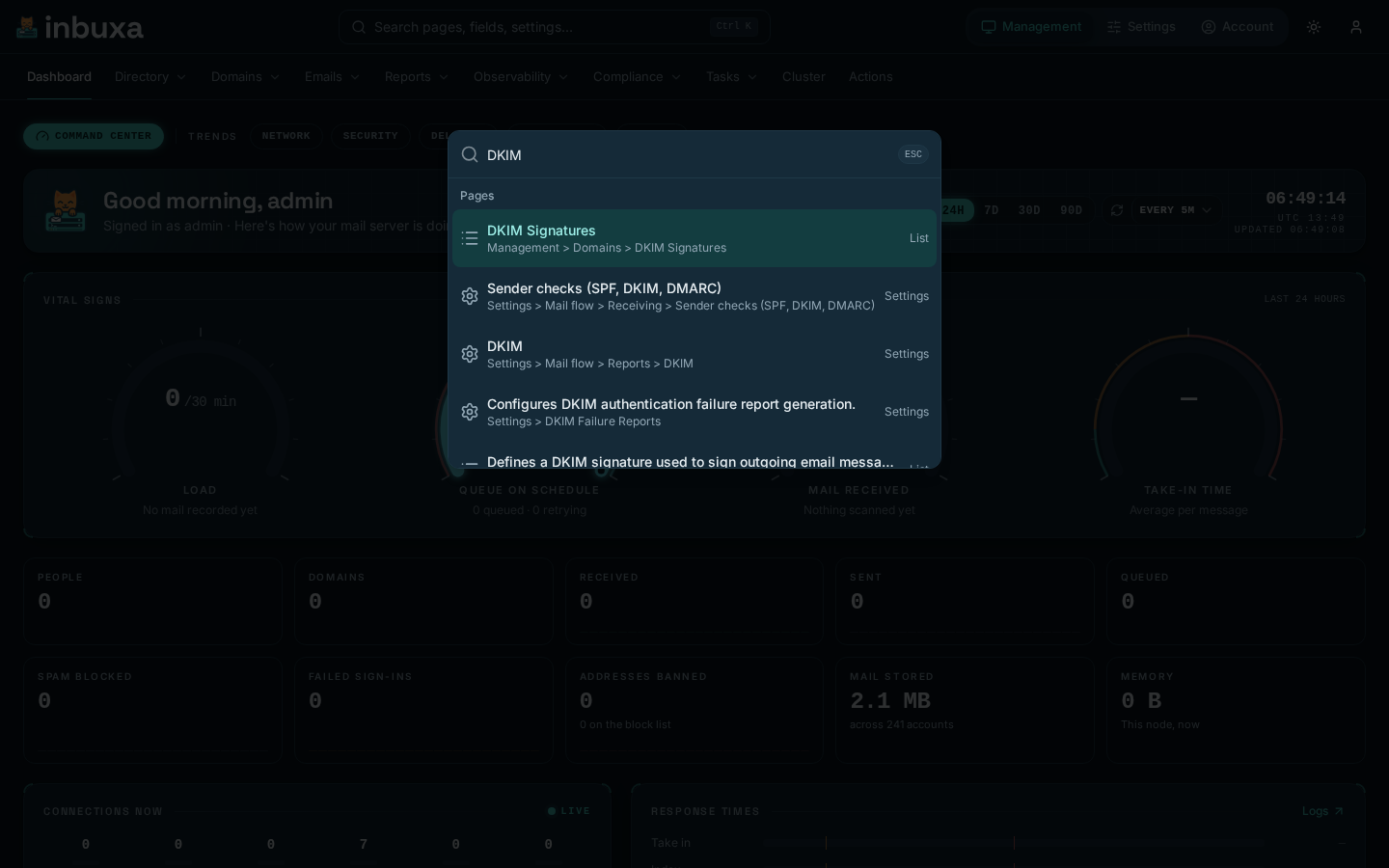
Finding your way:
- Search. Ctrl+K searches every page, form section and field by name: "Search pages, fields, settings...".
- Help. Every page has Help for this page: what people do there, and what its options mean. Every field has a help tip, with its default.
- Hover cards. Pointing at a domain or an account in a list shows a summary. For a domain, that's whether it receives mail, and how many of its key DNS records are live.
- Guided or by hand. The jobs with a guided setup ask each time whether you'd like to be walked through it or go straight to the full form.
- Your preferences. The user menu has Layout, Theme, and Source code (AGPL-3.0), which links to the exact source this console was built from.
Install it as an app
The console can be installed as an app. It then opens in its own window, without the browser's tabs and address bar, and sits in your dock, taskbar or home screen like any other program:
- Chrome and Edge: the install icon at the right of the address bar, or Install in the browser's menu.
- Safari on a Mac: File › Add to Dock.
- iPhone and iPad: Share › Add to Home Screen.
- Android: Install app or Add to Home screen in the browser's menu.
It's the same console as in a tab: you sign in the same way, it needs the server to be reachable, and it keeps nothing for offline use. A new version of the console reaches the app the next time it opens, with nothing to reinstall.
The Settings overview
Settings › Overview is where Settings opens. It has two parts:
- Guided setup: the jobs a guide can do for you, each marked Set up once it has been. See below.
- Changed from default: every page holding a value someone has changed, with how many, and a link to it. It's left out while nothing has changed.
Guided setups
A guide asks a few questions in plain words, shows what it will change before changing anything, and ends with how to check it worked. It writes the same settings the forms hold, so everything it did can be seen and changed on the pages it names at the end, and running it again changes your mind. Anything it doesn't cover is left as you had it.
| Guide | What it does | Details |
|---|---|---|
| How this server sends mail | Checks whether port 25 is open, then delivers directly or through a relay | Sending mail |
| Sending and receiving limits | Rate limits to suit who uses the server | Limits |
| Certificates, automatically | Checks your domains' names, then gets Let's Encrypt certificates | Certificates |
| Connect a sign-in directory | Active Directory, LDAP or OpenID Connect, tested on a real person first | Directories |
| Publish DNS records automatically | Connects your DNS provider, so each domain's records are kept up to date | DNS |
| Local AI spam filtering | A small model on this server helping sort spam | Local AI |
Some pages open with a short version of their job instead, above the form:
- Settings › Mail flow › Sender checks: how strict to be with incoming mail. See below.
- Settings › Spam filter › Filter settings: how hard the spam filter is. See below.
- Every page under Settings › Mail flow › Reports: which reports go out and come in. See reports.
- Every page under Settings › Storage › Retention: every "how long is this kept" as one sentence. See backups.
- Every page under Settings › Monitoring › Metrics, and Alerts and Webhooks. See monitoring.
- Settings › Network › Listeners (ports): the standard ports as a table, and whether each can be reached. See protocols.
On those pages the full form, or the list, is still there underneath.
Reading a settings page
- What it's for. Every settings page opens with one sentence saying what it's for. Pages that only specialists need say so.
- Changed from default. A field whose value differs from its default is tagged changed, and its help tip says what the default is.
- Reset to default. A page with any changed field has Reset to default at the bottom. It lists each field it would put back, with its value now and its default, and then fills the defaults into the form. Nothing changes on the server until you save, so Cancel still leaves things as they were.
- Expressions in words. Some settings take an expression, which can hold different values in different cases, such as one value for port 25 and another for everything else. Where the server says which values and checks an expression can use, it's shown as choices: a value, and any number of When conditions, each with Use, and Otherwise. Edit as text switches to the expression itself, and anything the choices can't show stays as text, untouched.
Saving applies it
Saving a setting applies it, on every node of a cluster, with no separate reload. The console says Saved and applied.
If the server can't apply it, the setting is still saved, the server keeps running on what it had, and the console says what stopped it and which setting the problem is in, with a link to open it. Once that's fixed, the saved changes apply.
Your own account in the console
Under Account, anyone who can sign in to the console manages their own:
- Credentials: Password, App Passwords for clients that can't sign in any other way, and API Keys for scripts and for SCIM.
- Masked Addresses, below.
- Archived Items: see undelete.
- Mailboxes, Calendars, Address Books, Sieve Scripts, Vacation Response, Spam Samples and Public Keys.
Masked addresses
A masked address is a disposable address that delivers to your account without revealing your real one. You give a different one to each service, and can cut any of them off without touching the others.
They're listed and created under Account › Masked Addresses. The webmail has no screen for them yet. Password managers that can create masked addresses through Fastmail's API can use inbuxa as they are, since the server speaks that API too, and create one whenever a new login is saved.
Each account can have 5 by default. The server-wide number is Masked Emails under Settings › Mail & apps › Defaults, and an account's own limits can change it for that account. 0 turns them off for an account. Creating them is also limited to 50 an hour per account.
How strict to be with incoming mail
Settings › Mail flow › Sender checks opens with the checks that tell real mail from forged mail as one of three levels:
| Relaxed | Recommended | Strict | |
|---|---|---|---|
| Sending server's name (SPF on EHLO) | checked | checked | checked |
| Envelope sender (SPF on MAIL FROM) | checked | checked | refused unless it passes |
| Sender domain's policy (DMARC) | checked | refused if the domain says reject | refused if the domain says reject |
| Forwarding chains (ARC) | not checked | checked | refused if broken |
| Reverse DNS of the sending server | checked | checked | refused unless it matches |
- Relaxed is the server's stock setting. It checks everything and hands the results to the spam filter, but refuses nothing.
- Recommended also refuses mail forged in the name of a domain that
asks for that (DMARC
p=reject), and checks forwarding chains. - Strict also refuses senders without matching reverse DNS or a passing SPF record. Expect to lose some real mail from small or badly set-up servers.
The checks run on port 25, where other servers deliver; mail from your own signed-in people isn't checked. No level refuses unsigned mail, since most legitimate mail would bounce. Picking a level replaces the six checks in the form below, including any conditions you added to them. DKIM signing of your own mail isn't touched.
How hard the spam filter is
Settings › Spam filter › Filter settings opens with the filter's strength as one of three levels:
| Level | Filed in Junk from a score of | Refused from | What it means |
|---|---|---|---|
| Relaxed | 8 | never | Only clear spam goes to Junk. Some spam reaches the inbox; almost nothing real is misfiled. |
| Balanced | 5 | never | The server's stock setting. Likely spam goes to Junk; nothing is refused. |
| Strict | 4 | 12 | More goes to Junk, and blatant spam is refused outright. The sender of a misjudged message gets a bounce. |
Under the levels, what happens to a message at each score is spelled out. No level ever deletes mail: a discard threshold set by hand is flagged, because deleted mail can't be found again and nobody is told, and picking a level turns it off. Thresholds set by hand that match no level are shown as such.
Beside the levels are the switches that matter most:
- filtering incoming mail at all;
- never treating replies to people's own messages as spam;
- never treating mail from people in their address book as spam;
- checking messages against Pyzor's shared list, which sends a fingerprint of each message, not the message itself, to public.pyzor.org.
Spam filter rules
The spam filter's rules, scores, DNS blocklists and lookups ship with the server. They're under Settings › Spam filter › Protection: Rules and Scores, and you can change any of them.
A rules update:
- adds the rules that are new;
- brings the rules you haven't changed up to date;
- leaves anything you edited as you left it, and never changes a score;
- keeps each rule switched on or off, whichever way you set it.
It runs on its own when an upgrade brings newer rules. To use rules from somewhere else, put their address in Rules URL under Settings › Spam filter › Filter settings; leaving it empty uses the rules that ship with the server. To update by hand, schedule Perform spam filter maintenance operations under Management › Tasks, choosing Download and update the spam filter rules from the configured source.
An update that changes anything writes one record in the audit log, saying what it added, replaced and kept.
Switch a rule off rather than deleting it
A rule you delete comes back the next time the rules update. One you switch off stays off.
Branding
The server's sign-in and RSVP pages, the webmail, and calendar emails show a logo. The most specific one that applies is used:
- a domain's own, in its Logo field under Management › Domains;
- a tenant's, in its Logo field, set in either app;
- the server's, Default logo URL under Settings › System › Branding.
The emails the server writes itself can use your own HTML, under Settings › Mail & apps: iMIP Template for invitations and replies and RSVP Page for the page people answer an invitation on, under Scheduling, and Alarm Template for reminders, under Alarms.